A useful discussion is easy to lose when it is spread across several Facebook groups. You search each group, open a few posts, and read through comment threads before you can compare what people are saying.
The traditional routine is repetitive: navigate to each group, submit a query, sift through outdated posts, click into individual discussion cards, and copy relevant opinions into your notes.
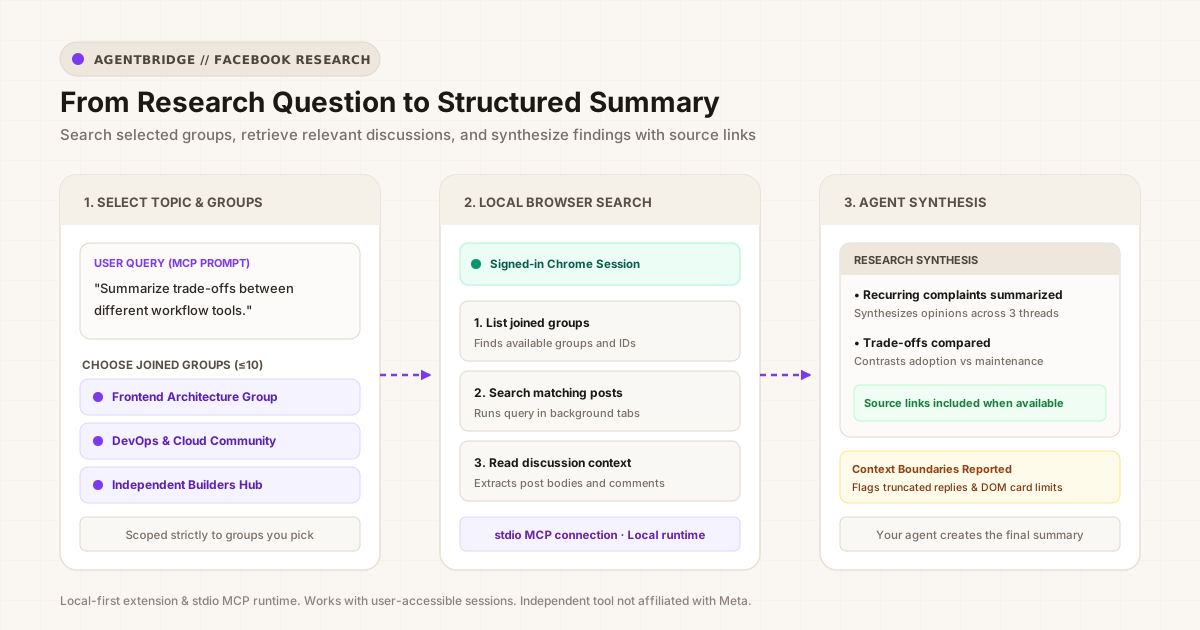
Facebook Group Search for AI Agents lets your AI agent work through that process using the Facebook session already open in Chrome. Connected through the companion AgentBridge local runtime, your agent can discover joined groups, search relevant posts across selected communities, read discussions, and assemble structured summaries with source links.
1. Start With a Question and a Few Relevant Groups
Effective community research starts with a specific question rather than an open-ended search. When you cast too wide a net across dozens of groups, you end up with noisy snippets and fragmented threads.
For example, imagine you are evaluating project management software for a small engineering team and want to know:
“What recurring complaints or trade-offs are small dev teams experiencing when comparing dedicated issue trackers, all-in-one workspaces, and self-hosted boards?”
Rather than trying to search all of Facebook, you select two or three specific groups where practitioners discuss workflows—such as a frontend architecture group, an indie founders hub, and an open-source builders community.
Keeping your initial scope to 2–3 relevant groups keeps the results focused. Remember that community opinions reflect personal experiences, not unanimous truths, so the goal is to uncover recurring themes and practical trade-offs.
2. Connect the Extension to Your AI Agent
To let your agent query Facebook on your behalf, you need three components working together:
- A signed-in Chrome session where you are already logged into Facebook.
- The Chrome extension, which runs background workers to read rendered pages.
- AgentBridge, a lightweight local Model Context Protocol (MCP) runtime that runs on your computer.
Step 1: Install the Extension
Install Facebook Group Search for AI Agents from the Chrome Web Store.
Step 2: Start the Local AgentBridge Runtime
Open your terminal and run the official companion package using npx:
npx -y @licheesight/agentbridgeOn its first launch, AgentBridge binds to loopback (127.0.0.1:8787) and displays a short-lived pairing prompt:
Pairing code: 492108
Open pairing URL in Chrome to connect: http://127.0.0.1:8787/connect
Step 3: Confirm the Pairing
Open the pairing link in Chrome. The extension detects the local runtime port and presents a confirmation dialog. Click Confirm & Connect.
The runtime verifies the one-time code and saves a local pairing token in ~/.agentbridge/pairing.json and Chrome storage. Subsequent sessions reconnect automatically without requiring you to re-pair.
Step 4: Configure Your MCP Client
Configure your AI coding assistant or desktop agent (such as Cursor, Claude Code, or Windsurf) using the CLI setup helper:
npx -y @licheesight/agentbridge setup --client cursorOr add the generic MCP server entry to your client configuration:
{
  "mcpServers": {
    "facebook-group-search": {
      "command": "npx",
      "args": ["-y", "@licheesight/agentbridge"]
    }
  }
}
Step 5: Test the Connection
Verify the connection by asking your agent to list your joined groups:
Please call facebook_list_groups to verify my connection and show the groups I can search.Your agent will return the groups cached by the extension, confirming that the tool transport is operational.
3. Ask the Agent to Search the Groups You Choose
Once connected, you can give your agent a prompt that specifies the scope, the query, and the desired filters:
List my available Facebook groups so I can select which ones to search.
Then search the groups I pick for discussions about project management tools.
Focus on recent posts and summarize the recurring trade-offs people mention.
How Multi-Group Search Works Under the Hood
When your agent invokes facebook_group_search:
- Explicit group selection: The agent provides up to 10 explicit
groupIdsper call. This ensures your search stays confined to the communities you deliberately choose. - Search filters: The tool supports Facebook’s native filters such as
recentPosts: true,seenPosts: false, andyear: 2026. - Minimized worker window: By default, the extension handles search navigation in a minimized, unfocused browser window. This allows Facebook to render its dynamic DOM without hijacking or refreshing the active tab you are currently reading.
- Bounded retrieval: The extension scrolls incrementally to gather up to 50 rendered items, deduplicates repeated posts, ranks the text snippets, and returns a clean, structured payload to your agent.
4. Read the Posts Behind the Search Results
Search cards provide helpful snippets, but key trade-offs often hide in the comments. Once your agent identifies two or three compelling posts from the search results, it can call facebook_group_read_post or facebook_group_read_posts to inspect the full thread.
Read post 1042_884192 from the Frontend Architecture group and post 8891_902144
from the Solo Founders Hub, including up to 15 top comments.
Handling Permalinks vs. Rendered Card Snippets
Facebook’s dynamic layout does not always expose a clean, standalone URL for every search result. The extension handles this transparently:
- Direct post links: When Facebook provides a permanent post URL, the extension returns it in the structured output so you can open the original discussion directly.
- Rendered card excerpts: When Facebook only exposes an internal timestamp link that cannot be opened as a standalone page, the extension extracts the post text and visible comments directly from the rendered card.
5. Turn the Retrieved Discussions Into a Useful Summary
An important architectural distinction is that the extension extracts rendered text, while your AI agent generates the synthesis. The extension does not contain a built-in language model; it delivers structured JSON data over MCP so your agent can reason over the findings.
Illustrative Example: The table below demonstrates how an agent can organize retrieved community feedback and flag source limitations. This is a hypothetical mock example to illustrate format and traceability, not an empirical evaluation of these products.
Sample Agent Research Format (Hypothetical)
| Tool Category (Example) | Key Themes Summarized by Agent | Source Link Provided | Context & Limitation Notes |
|---|---|---|---|
| Dedicated Issue Tracker | Valued for fast keyboard shortcuts and streamlined triage; non-technical team members reported higher adoption friction. | Direct post URL returned by search card | 8 visible comments included; deeper nested replies were truncated. |
| All-in-One Workspace | Praised for uniting docs and project tables in one tool; larger databases reported slower load times on mobile. | Direct post URL returned by search card | Post body retrieved; thread had no visible comments at scan time. |
| Self-Hosted Board | Preferred for local data control and predictable costs; requires ongoing team maintenance and backup setup. | Opaque search link (DOM card excerpt only) | Permalink omitted by Facebook UI; text read from rendered card. |
6. Check the Sources and the Missing Context
AI agents excel at synthesizing volume, but rigorous research requires checking primary sources. When evaluating your agent’s summary:
- Follow direct links when provided: Click through to the original post to verify the author’s tone and context.
- Review identified limits: Your agent’s response should indicate if certain groups failed to render or if comments were truncated by page boundaries.
- Distinguish anecdotes from consensus: Several community members expressing an opinion does not represent unanimous industry consensus. Treat community threads as qualitative signals rather than verified metrics.
If your agent claims to have analyzed “every post in the group” or fails to mention that some discussions lacked permalinks, remind it to report the boundaries returned by the tool.
7. Know Where Your Research Data Is Processed
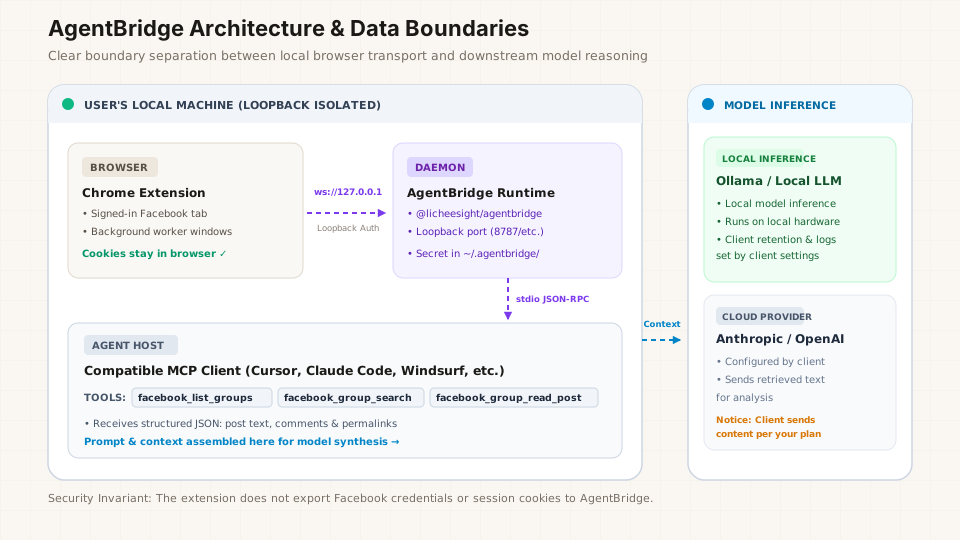
Understanding data boundaries is essential when connecting browser tools to AI agents. The workflow is divided into two distinct zones:
1. User’s Local Machine (Loopback-Bound)
- Chrome Extension: Interacts with Facebook exclusively within your browser. Your login cookies, session tokens, and passwords remain in Chrome’s browser storage and are not transmitted to AgentBridge or written to configuration files.
- AgentBridge Runtime: Runs locally as a background process binding exclusively to loopback (
127.0.0.1). It relays tool calls between your MCP client and the extension over a local WebSocket secured by proof-of-possession pairing.
2. Downstream Model Reasoning (Configured by You)
- Local Models (e.g., Ollama, local vLLM): If your MCP client connects to a local model, model inference runs on your machine. Keep in mind that chat history, file caching, and client telemetry still depend on your MCP client’s local settings.
- Cloud Models (e.g., Anthropic, OpenAI): If your MCP client is configured with a cloud provider, retrieved post excerpts and summaries are transmitted to that provider according to your client’s API configuration and terms.
AgentBridge keeps browser access and credentials local, while your MCP client determines where retrieved content is sent.
8. When a Search Needs Another Try
If your agent encounters an error during a search, check these common causes before running the query again:
- Not signed in to Facebook: If your Facebook session expired in Chrome, the extension cannot access your groups. Open Facebook in a normal tab and confirm you are logged in.
- AgentBridge disconnected: If your terminal session stopped, restart the runtime with
npx -y @licheesight/agentbridge. Your pairing credentials will be automatically recognized. - Background tab throttling: When searching multiple groups in parallel, Chrome may throttle background worker tabs under heavy system load. You can run an explicit foreground diagnostic by asking your agent to pass
background: falsein the tool call. - Empty search results: An empty result list does not automatically mean a group has no discussions. If Facebook’s dynamic search interface encounters a rendering delay, the content script will report a timeout rather than guessing. Narrow your query or inspect the group directly in Chrome.
9. Start Small Before Scaling Your Research
You do not need to query all your communities at once. The most reliable way to research Facebook discussions with an AI agent is to start with a single, clear question across two relevant groups.
- Verify your pairing and call
facebook_list_groups. - Select up to 10 specific group IDs matching your topic.
- Review the initial search results, read the key threads, and verify the permalinks.
Ready to connect your AI agent to your Facebook groups? Explore Facebook Group Search for AI Agents or install the extension from the Chrome Web Store.